By Thomas Echezabal, AI Automation Coach, thomasknows.ai
Claude can help a small business turn approved files and instructions into proposals, reports, research, and recurring drafts. The useful setup combines Projects, Connectors, Skills, Cowork, and Scheduled Tasks while keeping sending, publishing, pricing, and other consequential decisions behind human approval. This guide shows how the pieces fit together and where plan, surface, and permission limits matter.
Key Takeaways
In this guide, you'll learn:
- How Claude's six features - Projects, Connectors, Skills, Cowork, Scheduled Tasks, and Research Mode - work together as a system
- How Projects give Claude permanent memory about your business
- How Connectors wire Claude into your email, calendar, CRM, and dozens of other tools you already use
- How Skills save reusable instruction sets so your workflows stay consistent across every task
- How Cowork handles complex jobs step by step - reading files, running analysis, creating deliverables, and saving finished work back to your drive
- How Scheduled Tasks run workflows automatically on a set cadence without you sitting in front of the screen
- How Claude in Chrome automates web apps from your browser - updating CRMs, pulling dashboard reports, and filling forms
- How Research Mode delivers structured reports with citations in under 15 minutes
What Is Claude AI?
Claude AI is an assistant built by Anthropic that goes beyond chat. It connects to your business apps, reads your files, follows reusable instructions, runs multi-step tasks, and delivers finished work - proposals, reports, follow-ups, research - from instructions you write in your own words.
Once it is set up, Claude operates more like a back office than a chatbot. It knows your clients, follows your formats, pulls from your tools, and runs on a schedule - so the business keeps moving even when you are focused on something else.
What sets Claude apart from a search engine or a generic chatbot is how it works through problems with you. Hand it something messy - a pricing decision you are stuck on, a pitch that is not landing, a client situation you do not know how to handle - and it asks clarifying questions, weighs the tradeoffs, and pushes back when your reasoning has holes. It is not a tool you query. It is a thinking partner you work with.
Here is Anthropic's two-minute overview:
Video: What is Claude? - from Anthropic Academy
Getting Better Results
The quality of what Claude produces depends entirely on how you talk to it. A vague prompt gets a vague response. A specific prompt gets output you can actually send.
"Write me an email" produces something generic. "Write a follow-up email to a restaurant owner who asked about our monthly bookkeeping package. Keep it under 150 words. Friendly but professional. Mention that we include payroll" produces something ready to use.
Every good prompt has three parts:
- Set the stage. Who are you and what is this for? "I run a bookkeeping firm that serves restaurants in Miami. This is for a follow-up to a prospect who asked about our monthly package."
- Define the task. What action should Claude take? Write, analyze, compare, summarize. Be specific about what you want back.
- Specify the rules. Tone, length, format, examples. "Keep it under 150 words. Friendly but professional. Mention that we include payroll."
You can also upload files directly into the conversation - proposals, spreadsheets, client emails - and Claude will use them as context for its response. Here are the four problems you will hit most often:
Generic output: Claude does not know your business unless you tell it. One sentence of context changes everything. "I run a bookkeeping firm that serves restaurants in Miami" is enough to shift the entire tone.
Wrong tone: Do not say "professional tone." That means nothing to an AI. Paste an email you have written before and say "match this voice."
Too long or too short: Say so. "Give me a 3-sentence email" or "Write a two-page proposal with a pricing table." Claude follows length instructions well.
Something feels off: It happens. Ask Claude to explain its reasoning. For complex financial analysis, turn on extended thinking mode. The rule: always review anything that goes to a client.
Treat the first response as a draft. The real value is in the back-and-forth. "Make the opening more direct." "Add a section about pricing." "Cut this in half." That is where the output gets good.
This walkthrough covers how to start using Claude effectively, from setup to your first real output:
Video: Your first conversation with Claude - from Anthropic Academy
Claude Projects
The single biggest waste in how people use AI is re-explaining the same business context in every conversation. Projects reduce that repetition by keeping related instructions and approved reference files together.
A Project is a workspace where you upload your reference materials - service menu, pricing sheets, past proposals, brand guidelines - along with instructions about tone, format, and constraints. Every conversation inside that project starts with Claude already up to speed.
Think of a Project as a focused workspace, not unlimited memory. Claude can use the instructions and files available to that Project, but the active model still has context limits and may need a large task split into stages.
Setting Up Your First Project
It takes three steps:
- Create the project. Click "New project" and give it a name. In the description, tell Claude what you are trying to accomplish - "Draft client proposals for my bookkeeping firm" or "Write listing descriptions for residential properties in Coral Gables."
- Add instructions. This is where you define how Claude should respond inside every conversation in this project. Specify tone, expertise level, formatting rules, or any constraints. For example: "Write in a warm but professional tone. Always include pricing as a table. Reference our service menu when listing deliverables." These instructions apply automatically to every chat in the project.
- Upload your files. Add the documents Claude should reference - PDFs, spreadsheets, CSVs, Word docs, or connect Google Drive. Everything you upload is available across all conversations in the project. Your service menu, past proposals, brand guidelines, pricing sheets - upload them once and Claude references them every time.
One thing to keep in mind: files uploaded to the project knowledge base are shared across all chats in that project. If you need to reference something for just one conversation - like a specific client email - upload it directly in the chat instead. That keeps your knowledge base clean and focused on the materials that apply to every task.
Everything inside a project stays private to you. The one place that changes is publishing: an artifact you publish becomes a public page that Google can index, which caught a lot of owners off guard in July 2026. If you have ever clicked Publish, spend fifteen minutes auditing your published artifacts before you go further.
Here is what the full setup looks like in practice:
Video: Getting started with Projects in Claude - from Anthropic Academy
For a deeper walkthrough - including what to upload, how to write custom instructions, and what to avoid - see the full Claude Projects tutorial.
Claude Connectors
Connectors let Claude use approved information or actions from business apps without manual copy and paste. The exact capabilities depend on the connector, account, plan, administrator policy, and surface. Treat each tool permission as a separate capability rather than assuming every connector can read and write everything.
What Connectors Actually Do
Each connection requires authorization, and write-capable tools may require separate approval or administrator enablement. Current examples include:
- Google Workspace: Claude can search and read Gmail, create drafts, and manage supported labels and threads. It does not send Gmail messages through the native connector.
- Microsoft 365: supported organization accounts can read and, when an administrator enables write tools, draft, send, and organize Outlook mail. Personal Microsoft accounts are not supported by the native Microsoft 365 connector.
- Google Drive, Notion, Slack, and other connectors: search, retrieval, drafting, and write tools vary by provider and workspace policy. Read the exact tool list before granting access.
Claude's connector directory changes over time. Start with one read-only source, verify what Claude can see, and enable a specific write only after the read-and-diagnose workflow works.
How Do Connectors Work?
Some connectors are native integrations and others use the Model Context Protocol, often called MCP. Ownership alone does not tell you whether a tool can read, write, run remotely, or work without approval. Inspect the exact connector and workspace policy.
Once your connectors are set up, Claude figures out which ones to use based on what you ask. You can also tell it directly - "check my Gmail" or "pull from Linear" - when you want a specific app.
How to Set Up Your First Connector
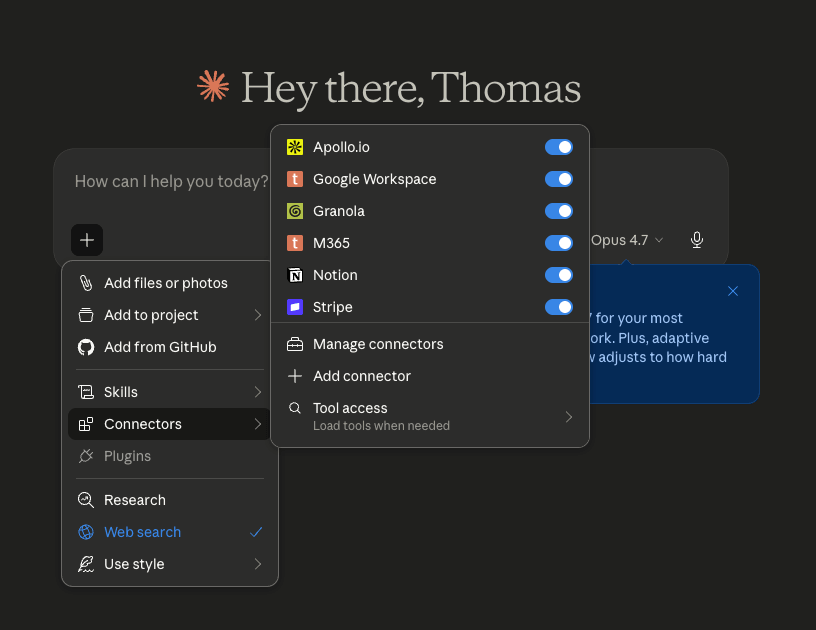
- Open a new Claude task and find the current Connectors or tools control.
- Add one connector that holds information needed for a real workflow.
- Review the listed tools and begin with read-only access when possible.
- Ask Claude to list what it can see without changing anything.
- Enable and test any required write tool separately. Keep sending, deleting, publishing, or irreversible changes behind approval.
Connectors in Action
Without Connectors, you are the middleman. You copy an email, paste it into Claude, wait for a response, then go back to the app to act on it. With Connectors, Claude goes straight to the source - pulling what it needs, when it needs it, and working across multiple apps in a single request.
Here is a walkthrough on how to set up Connectors and start using them:
Video: Introduction to Connectors - from Anthropic Academy
For a deeper walkthrough with step-by-step setup instructions and real business examples for each connector, see the full Claude Connectors tutorial for small business owners.
Claude Skills
A Skill is a set of instructions, templates, and workflows that Claude loads automatically when it recognizes the task. Once active, Claude follows those rules without you repeating them.
Here is what that looks like in practice: every month a bookkeeper formats the same client report - header at the top, executive summary, categorized expenses in a table, year-over-year comparison, notes for anomalies. Fifteen clients means explaining the same structure fifteen times. A Skill flips that equation - she explains it once, and Claude carries it forward from there.
What Skills Actually Are
Skills come in two forms:
-
Anthropic Skills are built by Anthropic and handle document creation. When you say "create a spreadsheet," Claude does not just dump text into cells. It builds working formulas, proper formatting, and functional pivot tables. That is an Anthropic Skill running behind the scenes. Same for Word documents, PowerPoints, and PDFs.
-
Community Skills are created and shared by other users. Sales call prep, financial modeling, content calendars. Browse the directory in Settings and enable the ones that match your work.
How to Get Started with Skills
- Go to Settings > Capabilities in Claude and scroll to the Skills section
- Browse the built-in skills and toggle on the ones that match your work
- Claude detects when a skill applies and follows its instructions automatically
Want to go further? Turn on the Skill Creator skill, then type "make a new skill" in any chat. Claude will ask what workflow the skill should handle, what triggers it, and what makes it unique. Answer the questions, then click Save skill in the top right of Claude's draft. The whole process takes a few minutes.
If your first skill isn't quite right, reopen the chat where you created it, ask Claude to adjust it, then save the updated version. Skills handle the tooling; Project Instructions (from the Projects section above) handle your preferences.
Here's a step-by-step walkthrough that covers turning on built-in skills, building a custom one from scratch, and putting it to work on a real task:
Video: Claude Skills and file creation
Claude Cowork
Claude Cowork is the task-completion surface for multi-step knowledge work, but its storage and runtime depend on how the task is configured. Account-backed Cowork Projects can continue across supported web, desktop, and mobile surfaces. A Project tied to a local folder still depends on the desktop app and that computer.
Use Cowork when the outcome is a finished, reviewable file or analysis rather than one chat answer. Give it the approved sources, finished format, constraints, and approval points. Do not describe Cowork as universally cloud-only or universally local.
Cowork now runs across supported web, desktop, and mobile surfaces on eligible accounts. Availability still depends on plan, workspace policy, rollout, and whether the task needs local files or apps. Every task should follow the same loop:
- Describe what you want back. Tell Claude what to look at, what you need, and where the output should go.
- Review the plan. Claude shows what it will do before it starts, and you can approve, modify, or redirect.
- Let it run. Claude works through the plan step by step while you watch progress, pause, or steer mid-task.
- Review the output. Check the finished files and provide feedback or ask for revisions.
Model names and plan access change faster than the workflow. Start with the default model shown in your account. Use a stronger available model only when the task has several sources, competing constraints, or meaningful cost if the first pass is weak.
Cowork in Action
A useful first test is a copied folder of non-sensitive invoices with inconsistent file names. Ask Cowork to propose the naming rule, show the planned moves, and create a summary spreadsheet. Approve the plan only after the proposed names and folders match your accounting process.
Another example: a marketing agency owner needed a performance report from YouTube Studio. Instead of pulling the data manually, he told Cowork to browse YouTube Studio, pull the analytics, and write a report. Cowork opened Chrome, navigated to the dashboard, and came back with a formatted summary.
The pattern is always the same - describe the task, answer any clarifying questions, approve the plan, and let Cowork run. Here is a full walkthrough:
Video: Claude Cowork walkthrough
How Cowork Gets Work Done
Cowork combines six capabilities into a single task. Here is what each one does:
- File operations: Claude reads and writes files directly on your computer - spreadsheets, Word docs, PowerPoints, PDFs, images. No uploading or downloading. It works where your files already live.
- Connectors: The same connectors from earlier in this guide (Gmail, Calendar, Notion, Slack) also work inside Cowork tasks. Claude can pull data from connected apps and act on it as part of a multi-step workflow.
- Skills: reusable instruction sets that activate automatically inside Cowork tasks. If you have a Skill for formatting client reports, Cowork applies it without being asked.
- Subagents: When a task is too big for a single pass, Cowork breaks it into smaller pieces and hands each one to a separate Claude instance running in parallel. Reviewing six competitor pitch decks? Cowork can assign one agent per deck, each extracting positioning, pricing, and differentiators at the same time. Reconciling invoices across multiple clients? One agent per client folder. The results come back coordinated into a single output. This is how Cowork handles work that would take hours if done one step at a time.
- Plugins: Bundles of skills, connectors, and subagents packaged for a specific role. A marketing plugin knows campaign brief structure. A finance plugin knows investment memo format. Install them from Settings > Plugins with one click.
- Data analysis: Cowork can run code on your files locally - pivot tables, trend analysis, outlier detection, charts. Results are saved back to your folder.
Video: Claude Cowork components overview
Dispatch: Delegate from Your Phone
Dispatch lets Claude keep working on your desktop even when you are away from your computer. Pair your phone with Claude Desktop once, and from that point forward you can send instructions remotely from anywhere. Claude picks up the task on your computer, runs through the plan-approve-execute loop, and delivers finished work to your folder.
Here's what that looks like in practice: You are at a client lunch and remember a proposal needs to go out by end of day. Pull out your phone, send Claude the instructions - "Draft the proposal for the Martinez account using last month's template, save it to the client folder" - and by the time you get back to your desk the draft is sitting in your folder, ready to review.
Video: Claude Dispatch walkthrough
Dispatch requires a Pro or Max plan and the latest Claude Desktop app. Anthropic's setup guide walks through the pairing process step by step.
Scheduled Tasks
Scheduled Tasks launch fresh Cowork sessions on a saved cadence. The saved prompt must contain the complete instructions, sources, output format, and failure behavior because the run does not inherit an earlier interactive session automatically.
A bookkeeper set up a weekly task every Friday at 4 PM: Claude pulls the week's transactions from her accounting connector, categorizes anything unmatched, flags anomalies, and drops a one-page summary into her Drive folder. By the time she wraps up for the week, the report is already waiting. I set up something similar for my own Monday briefings - calendar, open tasks, and emails that need responses before noon - all of it compiled automatically before I sit down.
How Scheduled Tasks Work
Type /schedule in any Cowork conversation, or use the Scheduled Tasks area in the sidebar (in the left panel of Claude Desktop). Claude walks you through three things: what the task should do, how often it should run, and what folder to work in.
Remote schedules can continue without your computer when every dependency is account-backed or available through a remote connector. A task that needs a local folder, local app, local connector, browser control, or computer use still depends on the relevant computer. Claude also requires a final Schedule confirmation, and organization approval policy can gate connector actions.
Video: How to use Claude Scheduled Tasks
Claude in Chrome
Claude in Chrome can interact with supported web pages through your signed-in browser session when the extension, plan, permissions, and site allow it. It is useful for bounded browser tasks, but it does not guarantee compatibility with every website and it does not remove the need to review requested actions.
Say you track leads in a web-based CRM and need to update contact records after a batch of discovery calls. Instead of clicking through each record manually, you tell Claude what to update and it navigates the CRM, fills in the fields, and moves to the next record. The same pattern works for pulling reports from a web dashboard or submitting intake forms.
Here is a 90-second demo showing Claude in Chrome automating different tasks across web apps:
Video: Claude in Chrome extension demo
Before you automate anything sensitive, keep this in mind: any AI that browses the open web is exposed to content it does not control. Claude in Chrome blocks banking, crypto, and adult sites by default to limit exposure. For sensitive document work, prefer a bounded file workflow with the minimum approved sources. The Claude vs. ChatGPT comparison guide covers the data and permission tradeoffs in detail.
Before relying on it, verify current eligibility and permissions in Claude's official setup instructions and your account. Test on a copy or reversible workflow before allowing edits to a live CRM, form, or client record.
Research Mode
Research Mode performs a longer source-gathering task and returns a structured report with citations. Use it for questions that require several public sources or connected business sources, not for a fact you can verify in one official document. Runtime and availability depend on the plan, task, and current product limits.
To start a research task, click the + button at the bottom-left of any chat in claude.ai and turn on Research from the menu. Claude will confirm the scope, then begin working in the background.
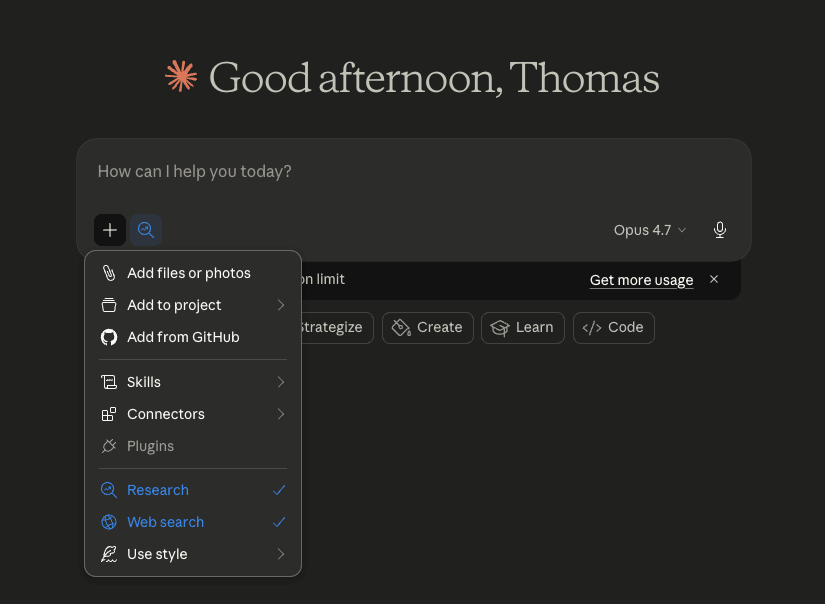
Since research runs in the background, you can close the tab and focus on other work while it runs. When you come back, the report is waiting. That makes it a good fit for market analysis, competitive research, vendor comparisons, and anything that normally takes hours of gathering information across sources.
One tip: invest time in a detailed prompt. Outline the sections you want in the final report, specify preferred source types, and add any constraints. If the prompt is too vague, Claude will ask follow-up questions before it begins - but a clear prompt up front saves time.
Research Works with Your Connectors
If you have Gmail, Drive, or Notion connected, Research searches your personal data alongside the public web. Ask "Research the latest trends in AI for small law firms and cross-reference with any conversations I have had with legal clients in the past 90 days." Claude pulls from your email threads and public sources to deliver one report that combines what the market is doing with what your clients are already asking about.
Research Mode in Action
A small agency needed to pick a project management tool. The owner asked Claude to compare the top five options for teams under ten people, focusing on pricing, Google Workspace integrations, and ease of onboarding. Claude evaluated each tool and delivered a comparison matrix ready to share with the team.
One thing to keep in mind: Research Mode cites its sources, but the sources themselves can be wrong or outdated. Verify any number you would put in front of a client.
Here is a walkthrough showing how to start a research task and what the final report looks like:
Video: Getting started with research in Claude.ai - from Anthropic Academy
Research Mode is valuable when it reduces source gathering without hiding the evidence. The review step still determines whether the report is safe to use.
How to Use Claude AI: Build Your First Personalized Skill in 15 Minutes
The fastest way to turn everything above into something that saves you time every week is to build a Skill for the workflow you already hand off to Claude most often. In fifteen minutes you can go from "I use Claude sometimes" to "Claude has a reusable setup for the exact job I run on repeat." Here is how.
-
Turn on the Skill Creator. Open Claude Desktop, go to Settings > Capabilities > Skills, and toggle on Skill Creator. You now have a built-in skill whose entire job is to help you build other skills.
-
Have Claude identify your top workflow and draft a Skill for it in one pass. In a new chat, paste this prompt:
"Look through your memory of our past conversations and identify the single workflow or task I delegate to you most often. Describe the inputs I typically give, the output I expect back, and any patterns in the tone, format, or constraints I keep asking for. Then make a new skill for that workflow - trigger on any request where I'm asking you to do that type of task, build step-by-step instructions around the pattern you identified, include two or three example inputs with the outputs I'd expect, and make it detailed enough to execute without me re-explaining."
If memory is enabled and available in the selected surface, Claude can use recalled patterns as a draft. Review every claim because memory may be incomplete or stale. If memory is unavailable, describe the repeated workflow in your own words before using the instruction.
-
Review and correct the draft. Read the instructions as if a new hire would follow them next week. Claude will have made assumptions that need correcting - add your actual tone rules, format requirements, edge cases, and any constraints you never thought to write down before. This is where the skill actually earns its keep.
-
Save the skill. Click Save skill in the top right of Claude's draft. The skill is now live in every chat - Claude will trigger it automatically any time your request matches the description.
-
Run a real task through it. Not a test prompt - the next actual instance of that workflow this week. If the output drifts, reopen the chat where you created the skill, ask Claude to adjust it, and save the updated version. Most skills need two or three rounds of iteration before they land cleanly.
Pricing
Claude's pricing page lists Free, Pro, Max, Team, and Enterprise options. Prices and feature access change, so use the table as a dated starting point and verify the current Claude pricing page before purchasing.
| Plan | Price | What You Get |
|---|---|---|
| Free | $0 | Test chat, files, web search, memory, Skills, and supported connectors within lower usage limits. |
| Pro | $20 monthly or $17 monthly with annual billing | Adds more usage, Cowork, Research, unlimited Projects, more models, and other paid capabilities listed by Anthropic. |
| Max | From $100 monthly | Adds substantially higher usage and earlier access to advanced features. |
| Team | From $25 per seat monthly, or $20 with annual billing, for the standard seat shown on the pricing page | Adds organization administration, shared business controls, and no model training on organization content by default. Higher-priced premium seats are also available. |
| Enterprise | Contract and usage-based | Adds enterprise identity, policy, audit, retention, and compliance controls. |
Solo owners should test the workflow on Free before moving to Pro for Cowork, Research, and higher usage. Teams should choose based on administration, data policy, connector governance, and shared-work requirements, not the seat price alone.
Claude vs. ChatGPT: How Do They Compare?
If you are weighing Claude against ChatGPT, the decision depends on where your work lives. Claude reads local documents, creates editable spreadsheets, and runs tasks on a schedule, which suits businesses built around proposals, reports, and client deliverables. ChatGPT now has Projects for ongoing business context, plus native image generation and cloud-based browser automation that works when your computer is off. Both cost $20 per month at the main personal tier, and many small business owners use both.
The full Claude vs. ChatGPT comparison for small business breaks down pricing, writing quality, context windows, privacy, and automation side by side - so you can decide based on how you actually work.
How to Measure Whether Claude Saves Time
Do not publish invented time-savings numbers. Measure one real workflow before and after setup, including source preparation, failed runs, corrections, and the review time that remains human.
| Workflow | Baseline to record | Claude-assisted result to record | Success check |
|---|---|---|---|
| Client proposal | Minutes from source review to approved draft | Minutes from source setup to approved draft | Price, scope, and commitments remain correct |
| Weekly expense review | Minutes gathering and categorizing evidence | Minutes reviewing Claude's prepared summary | Every number traces to an approved source |
| Monday briefing | Minutes compiling calendar, tasks, and messages | Minutes reviewing the scheduled draft | Missing sources and failed runs are visible |
| Client follow-up drafts | Minutes per approved email | Minutes per approved email draft | Nothing sends without the chosen approval path |
| Meeting summary | Minutes from transcript to assigned actions | Minutes to verify the prepared summary | Owners and deadlines match the source |
Keep the workflow only when the measured result saves time without weakening accuracy, privacy, or approval boundaries.
FAQ
Is Claude a good fit for small businesses?
Claude can fit a small business when the work involves documents, research, recurring drafts, or connected knowledge sources. Start with preparation tasks whose output a person can review. Do not make sending, publishing, pricing, deletion, or relationship-sensitive decisions unattended by default.
How much does Claude cost?
As checked on August 22, 2026, Claude Pro is $20 billed monthly or $17 per month with annual billing, and Max starts at $100 per month. Team and Enterprise pricing use different seat and usage structures. Verify the current pricing page because features and prices can change.
Can Claude connect to my business apps?
Yes, through supported connectors and tools. Search, read, draft, and write capabilities vary by provider, plan, account type, administrator policy, and surface. Review the exact tool list and permissions before enabling a connector; the Connectors section explains the safe setup sequence.
How is Claude different from ChatGPT for business use?
Both platforms now go beyond one-off answers. ChatGPT Projects keep related chats, files, instructions, and project memory together, while ChatGPT Work and Agent handle longer cloud-based tasks. Claude combines Projects with Connectors, Cowork's local-file workflow, and Scheduled Tasks. ChatGPT has the edge on native image generation, video, and voice; Claude is stronger when your work revolves around local documents, written deliverables, and recurring admin. For the full breakdown, see the Claude vs. ChatGPT comparison guide.
Do I need technical skills to use Claude AI?
Most workflows on this page begin with typed instructions, but account setup, permissions, source preparation, and review still require care. A nontechnical owner can use them without coding when the chosen connectors and surfaces are already supported.
What is Cowork and do I need the desktop app for it?
Cowork is Claude working through a multi-step task to produce a reviewable result. Account-backed projects can run across supported web, desktop, and mobile surfaces on eligible accounts. Tasks tied to local files or apps still depend on the desktop app and computer. Availability and permissions vary by plan and workspace policy.
Can Claude run tasks automatically?
Yes - Scheduled Tasks let you build a Cowork workflow once and set it to run on a recurring cadence: daily, weekly, or custom. Tasks run remotely on Anthropic's servers, so they fire even when your computer is asleep or the desktop app is closed. A task that works in a local folder still needs the desktop app open on that machine.
Is my business data safe?
Team and Enterprise organization content is not used for model training by default. On consumer Free, Pro, and Max accounts, model improvement depends on the current privacy setting; Incognito chats are excluded even when model improvement is enabled. Raw connector content is treated differently from text copied into a conversation. Review the current Anthropic training policy and your workspace controls before using sensitive information.
What are Claude Plugins?
Claude Plugins can package Skills, connectors, subagents, commands, scripts, and other role-specific resources. The plugin package is not itself a hosted runtime or scheduler. Availability, cloud visibility, connector reachability, and approval behavior depend on the plan, workspace, installation type, and Cowork surface. Start with a Skill and verified connectors when a personally installed plugin is not available to a remote scheduled session.
One free AI workflow, every Tuesday
Each week I break down what changed in AI and walk you through setting up one workflow, step by step. Subscribers also get first notice when my academy opens.
Built for non-technical business owners. Free to join, unsubscribe anytime.

About the Author
Thomas Echezabal helps small business owners automate their busywork with AI and get real hours back each week. He has worked with small businesses his entire career, including 200+ clients on Fiverr.