
How to Set Up Claude Projects for Your Small Business
By Thomas Echezabal, Claude AI Coach, thomasknows.ai
Here is what you learn quickly when you start using Claude: you end up re-explaining your business over and over. Your preferences, your past conversations, the way you like things written — none of it carries forward reliably. Every new chat feels like starting from scratch. Claude Projects fix this.
This tutorial walks you through exactly how to set up Claude Projects for your small business, what documents and instructions to include, and what to avoid.
Key Takeaways
In this guide, you'll learn:
- What Claude Projects are and how they give Claude permanent memory about your business across every conversation
- How to upload project knowledge — service menus, pricing, templates — so Claude references them every time without re-uploading
- How to write project instructions that control Claude's tone, role, and rules
- What the free plan includes (up to five projects) and when Claude Pro is worth the upgrade
- How to set up your first project in roughly 20 minutes, from documents to instructions to your first working conversation
Prerequisites
Setting up your first Claude Project takes a Claude account, two or three reference documents you already have on hand, and about five minutes to write a short set of instructions. Everything happens inside a browser — open the Projects panel, drop in your files, and write a few sentences about how Claude should behave.
Before you start, make sure you have:
- A Claude account at claude.ai (free or Pro — see plan comparison below)
- Two or three documents you want Claude to reference (PDFs, Word documents, or plain text files work best)
- Five minutes to write a short set of instructions for Claude
If you are new to Claude, start with the complete Claude AI guide for small businesses first. It covers the full picture before you get into specific features.
What Are Claude Projects?
Claude Projects are self-contained workspaces inside Claude.ai where you store documents, write custom instructions, and keep a running chat history that persists across every conversation inside that project. For small business owners learning how to use Claude AI for business, Projects are the single most practical feature — they give Claude permanent context about your business so you never start from scratch.
A real estate agent created a project called "Listing Descriptions." She uploaded her brokerage's style guide, three examples of past listings she was proud of, and her standard pricing tiers. Now, every time she needs a new listing drafted, she opens that project and types two sentences. Claude produces the full description in her brokerage's voice without any additional setup.
Without a project, none of that happens. Every new chat is a blank slate. Context gets re-pasted. Files get re-uploaded. Claude has no idea who you are, what your business does, or how you like things written.
Here is what that difference looks like in practice:
Video: Getting started with Projects in Claude — from Anthropic Academy
Projects vs. Standard Claude Chat
Claude Projects hold context permanently across every conversation inside the project. Standard chat conversations start fresh each time and lose all uploaded documents, instructions, and context when the window closes. The difference matters most for repeating workflows.
| Feature | Standard Chat | Claude Projects |
|---|---|---|
| Document uploads | Re-upload every session | Upload once, referenced always |
| Context retention | Ends when chat closes | Persists across all project chats |
| Custom instructions | Must re-paste each time | Written once, applied automatically |
| Chat history | Separate per conversation | Organized under the project |
| Team collaboration | Not available | Shared with teammates (Claude for Work) |
| Best for | One-off questions | Repeating workflows |
If you are asking Claude a one-off question — "What does this contract clause mean?" — a standard chat is fine. If you are doing the same type of work every week — proposals, reports, client emails — a project is worth the 20-minute setup.
Free vs. Pro: Which Plan Do You Need?
As of early 2026, Anthropic expanded Projects access to all users, including free accounts. Free users can create up to five projects, upload documents to the knowledge base, and maintain context across conversations.
The free plan works well for light or occasional use. If you are testing whether Projects fit your workflow, start here. The limitations show up when you use Claude regularly — lower message limits, smaller storage capacity, and no access to the model selector for choosing more powerful models.
Claude Pro costs $20 per month (or roughly $17 per month on an annual plan) as of March 2026. It removes the five-project cap, increases storage and message limits significantly (roughly five times the free tier), adds the model selector, and includes priority access during peak hours. Verify current pricing at claude.ai/pricing.
| Free Plan | Claude Pro ($20/month) | |
|---|---|---|
| Create projects | Up to 5 projects | Unlimited |
| Upload documents | Yes (smaller storage) | Yes (larger storage) |
| Message limits | Lower (hits rate limits faster) | Roughly 5x higher |
| Model selector | No | Yes |
| Priority access | No | Yes |
For most small business owners starting out, the free plan is enough to set up one or two projects and test the workflow with real tasks. If you find yourself hitting rate limits daily or needing more than five projects, that is the signal to upgrade.
Step-by-Step: How to Set Up a Claude Project
Setting up a Claude Project takes six steps and roughly 20 minutes for your first one.
Step 1: Open Projects in the sidebar
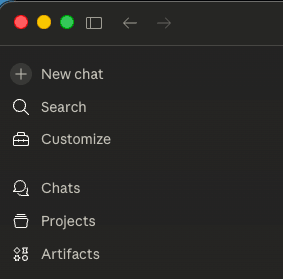
Log into claude.ai. In the left sidebar, click Projects. If you do not see it, make sure you are logged in — Projects is available on both free and Pro plans. It looks like a simple folder list.
Step 2: Create a new project
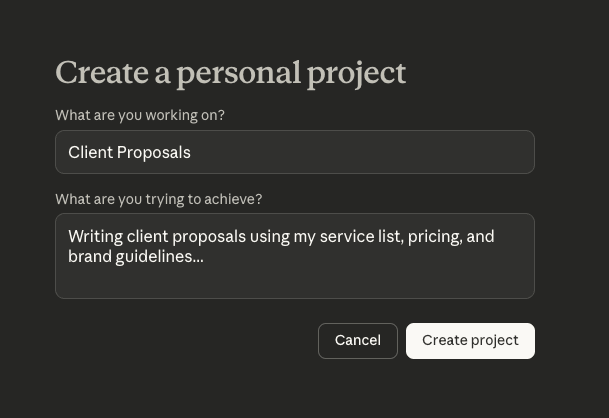
Click Create Project. Give it a name that matches the specific workflow you are setting up — not "Work Stuff" but something precise like "Client Proposals," "Weekly Reports," or "Social Media Captions." Name it the way you would label a folder on your desk.
Step 3: Upload your documents
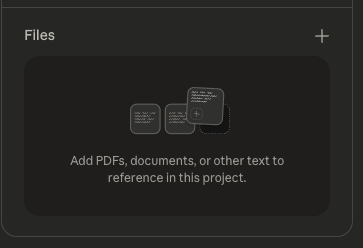
In the right sidebar, find the Files panel and click the + button. Upload PDFs, documents, or other text for Claude to reference inside this project. You do not need to upload everything at once — you can always add more later.
Start with just two or three files. Good starting documents for most businesses:
- A service or pricing document — what you offer and what it costs
- A sample deliverable — a past proposal, report, email, or social post you liked
- A short style guide or brief — how you communicate, what tone you use
I have a client who runs a home cleaning company. Her first project had three files: a rate sheet, a sample follow-up email, and a one-page brand voice doc. That was enough for Claude to draft booking confirmations and review responses in her voice from day one.
Step 4: Write Custom Instructions for Your Claude Project
This is the most important step. Claude can actually write these for you — and that's the first move I make on every new project.
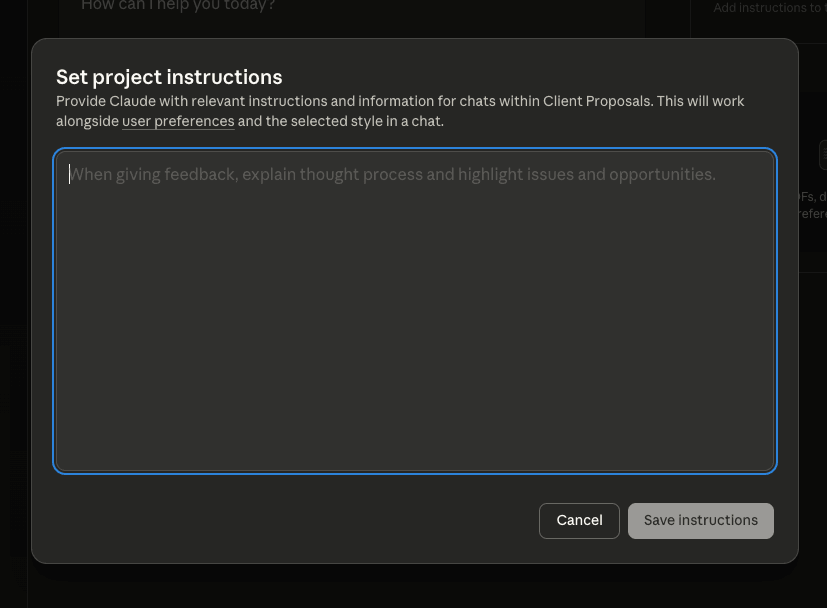
In the right sidebar, click the + next to Instructions. This opens a text field where you tell Claude how to behave inside this project. The better the instructions, the less you have to repeat yourself in every conversation.
Instead of staring at a blank box, open a new conversation in your project and paste this:
"I need you to write project instructions for this project. Ask me questions one at a time about my business, what I will use this project for, what tone I want, and any rules you should follow. When you have enough context, write me a full set of project instructions I can paste into the Instructions field."
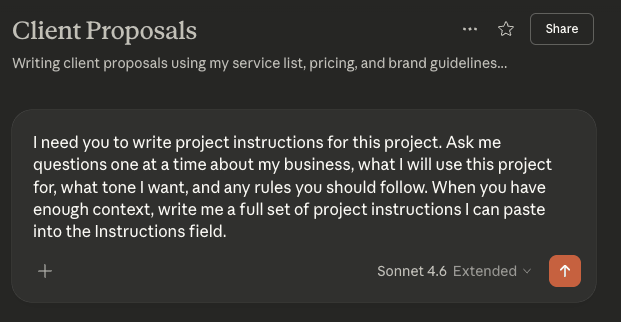
Claude will walk you through it. It typically asks five to eight questions — things like what your business does, who you are writing for, what formats you need, and what it should never do. After you answer, it produces a ready-to-paste instructions block.
Here is what that output might look like for a fitness studio:
Role: You are the communications assistant for Peak Form Studio, a boutique fitness studio in Austin, TX.
What you help with: Draft class announcements, membership renewal follow-ups, social media captions, and responses to DMs and Google reviews.
Tone: Warm, motivating, and concise. Write the way a coach talks to a client — encouraging but never pushy. Avoid corporate language. Use short sentences and contractions.
Rules:
- Always pull class names, schedules, and pricing from the attached documents. Never guess or invent details.
- Never create promotions, discounts, or limited-time offers unless I specifically ask for one.
- End every member-facing email with a clear next step (book a class, reply to confirm, etc.).
- Keep social captions under 150 words. Lead with a hook, not a greeting.
- When responding to negative reviews, acknowledge the concern, offer to take it offline, and never get defensive.
Copy the output, click the + next to Instructions in the sidebar, paste it in, and save. The whole process takes about five minutes and produces better instructions than most people write from scratch.
Step 5: Start your first conversation
Click New Conversation inside the project. Give Claude its first real task — a proposal draft, a client email, a social post, a report outline.
Claude reads your instructions and uploaded files automatically — you do not need to paste them in or reference them by name. Just describe the task.
Step 6: Verify the setup
Ask Claude something that requires information from your uploaded documents — a rate, a service name, a formatting rule. If it answers correctly without you specifying, the project is working.
I had a client test this by asking for a follow-up email. Claude pulled the correct pricing from her uploaded rate sheet without her mentioning it. That is when she knew the setup was working.
If it does not reference your documents correctly, check that the files actually uploaded (you will see them listed in the knowledge base panel). If the instructions are not being followed, try making them more specific and direct.
What to Put in a Project (and What to Leave Out)
The project knowledge base works best for stable reference documents that do not change week to week, like service menus, pricing sheets, and brand guidelines. Anything that updates frequently or contains sensitive client data should stay out of the knowledge base entirely.
Good candidates for project knowledge
- Service menus and pricing documents
- Past examples of work you want Claude to match
- Style guides or brand voice documents
- Frequently referenced templates (contracts, onboarding emails, proposal frameworks)
- Client intake forms or briefing documents
What NOT to put in a project
- Client personal information (names, emails, phone numbers, SSNs)
- Financial account numbers or banking credentials
- Passwords or login credentials
- Confidential contracts that include third-party NDAs
- Live data files that update frequently (use a linked Google Sheet via Claude Connectors instead)
The knowledge base is persistent — anything you upload stays there until you delete it. Treat it the same way you would treat a shared folder with a contractor: only put in what you would be comfortable with that contractor reading.
Resist the temptation to upload everything. A bloated knowledge base with 20 documents and a 500-word instruction block slows Claude down and reduces accuracy. Start lean.
Testing and Troubleshooting
If Claude does not seem to be following your instructions or referencing your documents, the fix is almost always in the setup rather than in Claude's capabilities. Most issues come down to files that did not upload correctly, instructions that are too vague, or tasks that fall outside the project's scope.
Check these first:
- Files did not upload correctly. Look at the knowledge base panel. If a file shows an error or is missing, re-upload it.
- Instructions are too vague. Go back and make them more specific. Replace general adjectives ("professional") with behavioral rules ("use short paragraphs and active voice").
- The task is outside the project scope. If you ask Claude something unrelated to the project's purpose, it may deprioritize the project instructions. Keep tasks focused on the workflow the project was built for.
- File format issues. Claude supports PDFs, DOCX, CSV, TXT, HTML, RTF, EPUB, JSON, and XLSX in the project knowledge base. Scanned PDFs generally work, but blurry or low-resolution scans may produce errors — a clean digital PDF is always the safer choice.
- Free plan limits hit. If you are on the free plan and getting warnings about storage or conversation limits, that is the ceiling. Upgrading to Pro ($20/month) resolves it.
Frequently Asked Questions
These are the questions I hear most often from small business owners setting up their first Claude Project.
What should I use Claude Projects for?
Claude Projects are best for repeating workflows where you want Claude to have consistent context — drafting proposals, writing client emails, producing weekly reports, or managing intake summaries. Any task you do more than once a week is a strong candidate for a project.
Can I turn a Claude chat into a project?
Not directly. Claude does not have a one-click "convert this chat to a project" feature. However, you can copy the context from an existing conversation — the documents you uploaded, the instructions you pasted — and set them up properly inside a new project. It takes about 15 minutes and the result is a much cleaner workflow going forward.
Can I make a Claude project public?
No. Claude Projects are private by default and cannot be made publicly accessible. On Team or Enterprise plans, you can share a project within your organization, but not with the public.
Can I share a Claude Project with my team?
Yes, but only on Team or Enterprise plans. Open the project, click the Share button next to the project name, and add members by name or email. You can set each person to "Can view" (use the project and chat inside it, but not edit) or "Can edit" (modify instructions, knowledge, and member settings). Shared projects appear in each member's "Shared with you" tab. Chats inside shared projects stay private by default.
Can I export my data from Claude?
Yes, but not per conversation. Claude offers a full account data export under Settings > Privacy > Export data. Claude processes the request and emails you a download link (valid for 24 hours). The export includes your conversation history and user data. There is no way to export a single conversation natively — if you need that, copy and paste is the simplest option.
Do I need Claude Pro to use Projects?
No. As of early 2026, Projects are available on the free plan with a cap of five projects and lower storage and message limits. The free plan is enough to set up your first project and test the workflow before deciding whether to upgrade. Pro ($20/month) is worth it once you are using Claude daily or need more than five projects. If you run separate projects for each client or department, you will hit the free cap quickly.
How are Claude Projects different from ChatGPT Custom GPTs?
Custom GPTs are the closest ChatGPT equivalent — a purpose-built version of ChatGPT with its own instructions and uploaded files. The practical difference is memory. Claude Projects carry forward what you have worked on inside the project, so each new conversation picks up where the last one left off. Custom GPTs start each chat fresh from their instructions and knowledge files alone. The other big difference is sharing: Custom GPTs can be published to the GPT Store or shared by link with anyone, while Claude Projects are private by default and can only be shared internally with teammates on the Team or Enterprise plan. For the full side-by-side, see the Claude vs ChatGPT comparison for small business.
Subscribe to my weekly newsletter
Every Saturday I share a practical Claude workflow you can set up in minutes. Each workflow is designed to help you save time & automate repetitive work.
Built for non-technical folks. Free to join.

About the Author
Thomas Echezabal has spent 1,000+ hours building workflows and automations inside Claude. He has worked with small businesses his entire career, including 200+ clients as a top-rated marketing strategist on Fiverr.