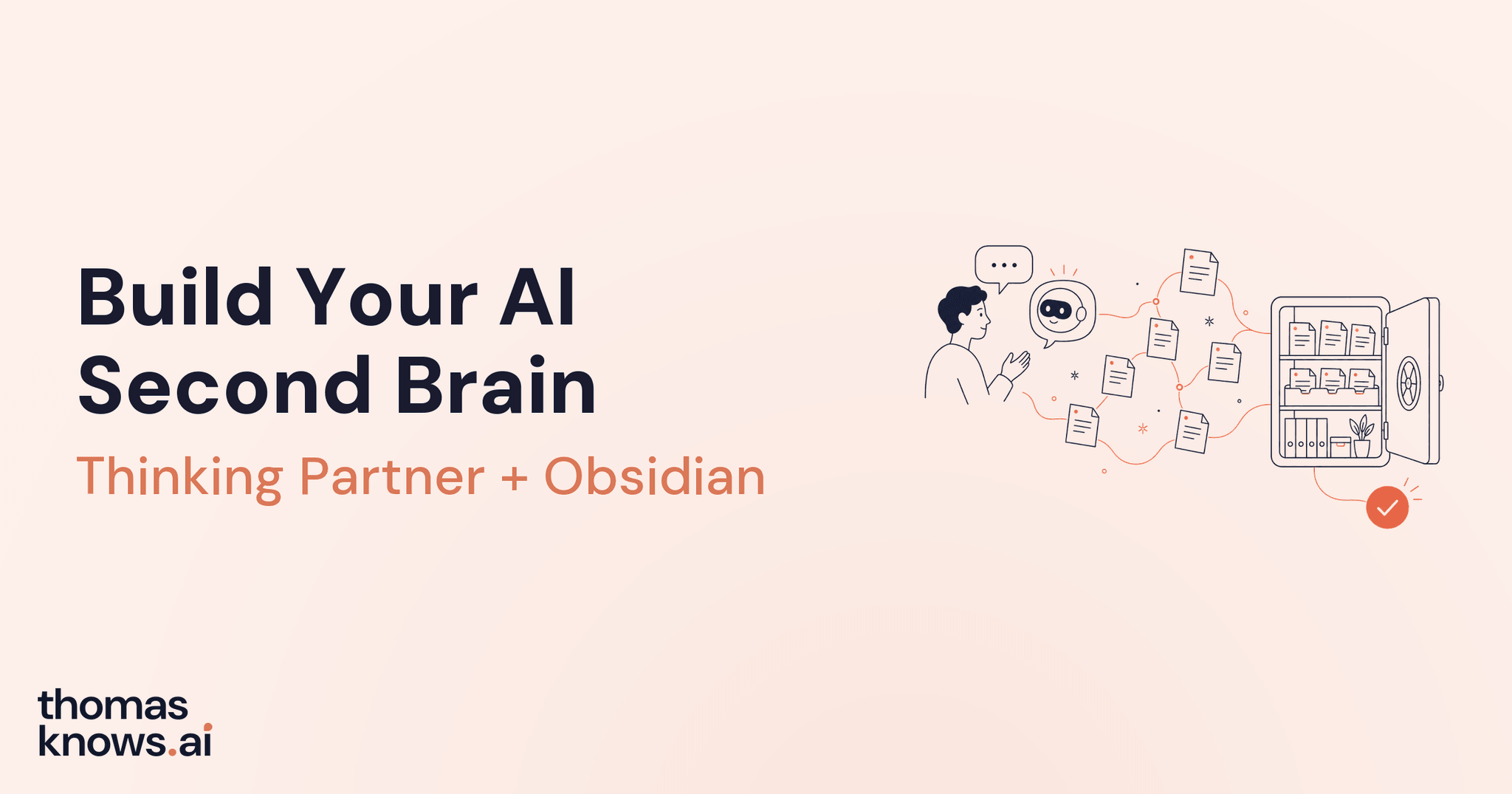
In 30-45 minutes, you will give an AI a better way to reason with you, give it a response format that is easier to act on, and connect it to a small Obsidian knowledge base that keeps its sources visible.
The goal is not an AI that magically knows everything about you. The goal is a controlled context system: reusable instructions for how the AI should help, plus a folder of knowledge it can read when you choose to share it.
Key Takeaways
- Build the system from reviewed information, not an unfiltered memory dump.
- Keep the durable knowledge in ordinary Markdown files inside one Obsidian vault.
- Treat skills as reusable instructions; they do not retrain the AI or change its model weights.
- Require source links and approval before generated notes become trusted knowledge.
- Start with one useful workflow and add more tools only after the retrieval process works.
Before you start
You need one supported desktop AI surface, a plain Obsidian vault, permission to install the required skills, and a small set of non-sensitive facts you are willing to review before storing.
- A Mac or Windows computer
- Obsidian, which is free for personal and commercial use
- One supported desktop AI tool: Claude Desktop with Cowork, ChatGPT desktop or Codex, or Microsoft 365 Copilot Cowork
- Permission from your account or workspace administrator to install custom skills
- A few non-sensitive facts about yourself that you are willing to review and store; the starter vault's synthetic meeting note is only an optional test
Warning
Enterprise safety rule: use synthetic, public, or explicitly approved information while learning. Do not add patient data, personal information, clinical research, contracts, pricing, HR records, manufacturing details, credentials, or other confidential material unless your organization has approved the AI account, the tool, the storage location, and that specific data type.
Product interfaces in this guide were verified on July 22, 2026. Availability can vary by plan, tenant, region, and administrator settings.
How context changes an LLM
An LLM generates its next response from the context available in that moment: your request, the conversation, active instructions, and any files or tools it can access. Better context gives it a better working picture of the problem.
Three things are easy to confuse:
| Layer | What it supplies | What it does not do |
|---|---|---|
| Skill | A reusable method or response preference | Retrain the model |
| Vault | Your selected source material and working memory | Permanently teach every future chat |
| Model | The underlying learned weights from training | Automatically know your private files |
Installing a skill or pointing an AI at your vault does not change the model's weights. It changes what the model can read before it responds. Think of the model as the reasoning engine, a skill as the operating procedure, and the vault as the open reference binder.
Watch: how models process information
This Anthropic interpretability discussion provides the research backdrop for the workflow. The Thinking Partner skill is an independent method inspired by failure modes surfaced in interpretability research; it was not authored or endorsed by Anthropic.
Watch directly on YouTube. Useful chapters: 1:37, 10:35, 20:39, 25:17, and 34:15.
The practical lesson is simple: do not force a complex decision into one underspecified command. Give the model room to gather missing context, reflect what it understood, explore genuinely different paths, and make its assumptions inspectable.
Use AI as a Thinking Partner
The Thinking Partner skill changes the relationship from command and answer to interview, reflection, and decision. It slows the task down long enough to separate facts, assumptions, alternatives, and the choice a person must still make. It uses five phases:
- Interview. Ask one high-value question at a time before solving.
- Reflect. Separate stated facts, interpretations, assumptions, and missing information.
- Generate options. Produce meaningfully different paths, not three rewrites of the same idea.
- Pressure-test. Evaluate each option independently for evidence, risk, tradeoffs, and reversibility.
- Recommend. Make a clear recommendation with reasoning the human can check.
Compare the opening prompt
Bad prompt
Create a plan to improve AI adoption across our teams.
That prompt hides the current state, the teams, the constraints, and what “adoption” means. A fluent model can still produce a confident, generic plan.
Thinking Partner opening
AI adoption is uneven across three teams, and I don’t yet know whether the bottleneck is training, trust, or workflow fit. Let’s think it through together.
The second version admits what is unknown and invites diagnosis before prescription. Test it yourself:
Thinking Partner test
Use the Thinking Partner skill.

AI adoption is uneven across three teams, and I don't yet know whether the bottleneck is training, trust, or workflow fit. Let's think it through together.

Interview me one question at a time before you recommend anything. Start with the single question that would reduce the most uncertainty.
Tip
Checkpoint: the first response should ask one clarifying question, not prescribe a full adoption strategy. If it jumps straight to a plan, say: “Pause. Interview me before solving.”
Install the two skills
Download the two skill ZIPs and verify each archive contains one skill folder with a readable SKILL.md. Install only from the linked source or use the copy-and-paste fallback when custom skills are disabled.
Use the ZIPs with Claude and OpenAI tools. Microsoft 365 Copilot uses the Markdown downloads in its section below.
Only install skills from sources you trust. A skill is readable text, so you can extract either ZIP and inspect SKILL.md before uploading it.
Claude
- Open Claude and choose Customize.
- Open Skills, select +, then Create skill.
- Choose the upload option and select the ZIP. Do not upload the folder that contains the ZIP.
- Repeat for the second ZIP and confirm both skills are enabled.
- Start a new chat and run the Thinking Partner test above.
Custom skills depend on your plan and may be disabled by a Team or Enterprise administrator. Claude may also require code execution to be enabled. See Anthropic's official Skills setup guide.
ChatGPT Skills
- Open ChatGPT and select Plugins, then Skills.
- Choose Create and Upload from computer.
- Upload each ZIP and confirm the skill is available.
- Open a new chat and explicitly ask ChatGPT to use the skill during the first test.
Personal skill creation is typically controlled by the workspace and is most commonly available on Business, Enterprise, Healthcare, and Edu plans. If you do not see Skills, use the fallback below or ask your administrator.
Codex
- Extract each ZIP.
- Move the resulting
thinking-partnerandi-have-adhdfolders into:- macOS:
~/.agents/skills/ - Windows:
%USERPROFILE%\.agents\skills\
- macOS:
- Restart Codex so it reloads the folders.
- Invoke them directly with
$thinking-partneror$i-have-adhdwhen needed.
Microsoft 365 Copilot Cowork
Copilot expects SKILL.md at the archive root, so use these Markdown files:
- Open Cowork in Microsoft 365 Copilot.
- Open Customize, then Skills.
- Use the arrow beside Add, choose Upload skill, and select each downloaded
.mdfile. - Start a new Cowork task and name the skill you want it to apply.
These controls are subject to Microsoft 365 licensing and tenant policy. If the upload control is missing, your administrator may have disabled custom skills. See Microsoft's Customize Cowork documentation.
If your administrator blocks skill uploads
You can still test the behavior in a single conversation. This does not install anything; it supplies the method as temporary chat context.
Thinking Partner fallback
For this conversation, be my Thinking Partner.

1. Interview me with one high-value question at a time before proposing a solution.
2. Reflect back facts, my interpretations, your assumptions, and what is still unknown.
3. Generate meaningfully different options.
4. Pressure-test each option independently for evidence, tradeoffs, risks, and reversibility.
5. Recommend one path with reasoning I can verify.

Do not jump to a plan. Begin by asking the one question that would reduce the most uncertainty.
Shape the response with i-have-adhd
The i-have-adhd skill was created by Ayoub Ghriss and is available under the MIT License. It changes how the answer is organized and presented; it does not diagnose, treat, or infer a medical condition.
It is an output preference, not a diagnosis. No diagnosis is required to use it. The skill makes responses easier to start and easier to resume by:
- Leading with the action instead of a long explanation
- Using bounded, numbered steps
- Showing visible progress and concrete time estimates
- Suppressing optional tangents while the task is active
- Restating the current state after interruptions
- Ending with one immediate next action
Thinking Partner controls the reasoning process. i-have-adhd controls the shape of the response. They can work together.
Activate it for the current session by saying, “Use the i-have-adhd skill for this session.” End the mode with stop adhd mode.
Test both skills together
Use the Thinking Partner skill and the i-have-adhd skill for this session.

Help me prepare for a 30-minute stakeholder update tomorrow. I have a rough deck, three open decisions, and 45 minutes tonight.

Interview me one question at a time. Keep your response action-first, use bounded numbered steps, show a realistic time estimate, and end with one immediate next action.
If you cannot install it, use this temporary fallback:
ADHD-friendly fallback
For this conversation, format every response for action:

- Lead with the next action.
- Give me a short numbered sequence with a clear stopping point.
- State a realistic time estimate.
- Keep optional ideas out of the main path.
- If we are interrupted, restate where we are and what comes next.
- End with exactly one immediate next action.

Keep these preferences active until I say: stop adhd mode.
Install Obsidian and open the starter vault
Obsidian calls a folder of notes a vault. It is still an ordinary folder containing Markdown files; your files are not trapped in a proprietary database. When an approved external tool changes a Markdown file, Obsidian notices the change.
Recommended: use the starter vault
- Install Obsidian from the official download page.
- Download the AI Second Brain starter ZIP.
- Extract the ZIP. You should see a folder named
AI-Second-Brain. - Open Obsidian and choose Open folder as vault.
- Select the
AI-Second-Brainfolder, not the ZIP and not the folder above it. - Open
README.md, thenAI-SYSTEM.md.
The starter is intentionally plain: no third-party plugins and no bundled .obsidian settings. It contains:
AI-Second-Brain/
├── README.md
├── AI-SYSTEM.md
├── AGENTS.md
├── CLAUDE.md
├── raw/
│   ├── inbox/README.md (your approved sources go here)
│   ├── examples/sample-meeting.md (optional fictional test)
│   └── assets/README.md
├── wiki/
│   ├── index.md
│   ├── log.md
│   └── open-questions.md
└── scratch/README.md
Manual setup fallback
If downloads are blocked, create the same folders and files yourself. Put source material in raw/, synthesized knowledge in wiki/, and disposable work in scratch/. Make AI-SYSTEM.md the main instruction file; AGENTS.md and CLAUDE.md should only tell the AI to read that file first.
Manual vault rules
Create a plain Markdown knowledge vault with three areas:

raw/ - immutable source material; never edit, summarize in place, move, or delete it.
wiki/ - agent-maintained knowledge pages with Obsidian wikilinks and a Sources section containing relative raw file paths.
scratch/ - temporary drafts that may be replaced after approval.

Before the first write, propose the exact files you will create or edit and wait for approval. Ask before any delete, rename, or move. Surface contradictions instead of silently resolving them. Maintain wiki/index.md, wiki/log.md, and wiki/open-questions.md.
Add Obsidian-specific skills
These skills were created by Steph Ango (@kepano) and released under the MIT License. The downloads preserve the full instructions and reference files from the upstream project, with only overlong metadata descriptions shortened for uploader compatibility.
Start with Obsidian Markdown. The others are optional:
- Download Obsidian Markdown ZIP - create notes with valid properties, wikilinks, embeds, and callouts
- Download Obsidian Bases ZIP - create database-like
.baseviews, filters, and formulas - Download JSON Canvas ZIP - create visual
.canvasmaps and diagrams - Download Obsidian CLI ZIP - search and manage a running Obsidian app through its CLI
- Download Defuddle ZIP - strip navigation and clutter from web pages before saving them as Markdown
Installing only the skills you use keeps the available instruction set easier to inspect. obsidian-markdown is enough for the wiki in this guide; you do not need Bases, Canvas, the CLI, or Defuddle to finish the setup.
Add them to Claude or ChatGPT
- Download one ZIP at a time.
- Use your platform's skill-upload flow described earlier in this guide.
- Upload the ZIP itself, not an enclosing folder.
- Enable
obsidian-markdown, start a new chat, and ask the AI to create one note with a property and a[[wikilink]]. - Add an optional skill only when you have a task for it.
Add them to Codex
- Extract each ZIP you want.
- Move the extracted skill folder into
~/.agents/skills/on macOS or%USERPROFILE%\.agents\skills\on Windows. - Restart Codex.
- Name the skill in your first request, such as
$obsidian-markdown.
Experienced users can alternatively install the current upstream collection with npx skills add https://github.com/kepano/obsidian-skills. That follows the upstream repository rather than the pinned downloads above.
Add the core instructions to Microsoft 365 Copilot Cowork
Use the Markdown fallbacks because Copilot's custom-skill uploader expects a Markdown file:
- Download Obsidian Markdown
- Download Obsidian Bases
- Download JSON Canvas
- Download Obsidian CLI
- Download Defuddle
Upload them through Cowork → Customize → Skills → Add → Upload skill. The Markdown fallbacks contain each core workflow; the ZIPs retain the additional reference files. Do not use obsidian-cli or defuddle unless your approved environment can run their required command-line tools.
Connect your approved AI tool
Warning
“Local folder” does not mean “local inference.” The files remain normal files on your computer, but their contents may still be sent to and processed by the AI provider when the model reads them. Check your organization's approved tools, retention controls, and data policy first.
Connect only the vault folder, not your Desktop, Documents folder, home directory, entire OneDrive, or company drive.
Claude Cowork
Watch a complete Obsidian + Cowork setup
Nick Milo's 19-minute walkthrough, published June 5, 2026, shows the process from beginning to end: setting up Obsidian, setting up Claude Cowork, creating Maps, and linking the AI to the knowledge system.
Watch directly on YouTube. Chapters: Obsidian setup at 1:11, Claude Cowork setup at 3:22, Maps at 7:02, and linking the AI at 11:34. This is an independent third-party tutorial, so follow the current product labels if an interface has changed.
- Open Claude Desktop and choose Projects.
- Select +, then Use an existing folder.
- Select only
AI-Second-Brain, add the project instructions if prompted, and create the project. - Open the project in Cowork and keep Claude Desktop available while Cowork needs local-file access.
- Begin with manual approvals for file changes and review the proposed plan before allowing writes.
- Ask Claude to read
CLAUDE.md, which points it to the mainAI-SYSTEM.mdrules.
Anthropic recommends narrow folder access and careful review because Cowork can read and modify the files you grant it. Follow the official Cowork setup and Cowork safety guidance.
ChatGPT Work or Codex
If you want ChatGPT to retain related chats, reference files, instructions, and project memory before the folder work begins, set up a ChatGPT Project. The steps below cover local-folder execution with Work or Codex; the Project is the persistent context layer, not a substitute for the reviewed vault.
- Open the desktop app.
- Open
AI-Second-Brainas the working folder. - Grant access only to that folder and keep approvals on for file changes.
- Ask the tool to read
AGENTS.md, which points it toAI-SYSTEM.md. - If your interface differs, use OpenAI's current ChatGPT Work and Codex desktop instructions.
Microsoft 365 Copilot Cowork
Microsoft 365 Copilot Cowork cannot directly access folders that exist only on your local device. This guide refers to Microsoft 365 Copilot, not GitHub Copilot.
Use one of these approved paths:
- Put the vault in an IT-approved OneDrive location, then right-click the folder in Finder or File Explorer and choose Always keep on this device. In Cowork, choose Add attachments → Attach cloud files, browse to the OneDrive vault, and select the Markdown files required for the task.
- If a OneDrive-backed vault is not approved, upload selected Markdown files to the Cowork task and manually return reviewed output to Obsidian. Cowork output may need to be moved back into the vault after review.
Do not combine OneDrive and Obsidian Sync for the same vault; two sync engines can conflict. See Microsoft's official Get started with Cowork page for current file-source support.
Test the boundary before real work
Folder access test
Read README.md and AI-SYSTEM.md. Do not read any other file and do not edit anything.

Tell me:
1. The exact folder you can access.
2. The files you read.
3. The approval you need from me before writing.
4. Whether this folder session can independently access my account memory or past chats. If you cannot verify that access, say you cannot and do not guess.
Tip
Checkpoint: the AI should name only files inside AI-Second-Brain, propose changes, and wait. If it writes immediately, stop the task and restore the file before continuing.
Build your wiki from reviewed AI memory
Do not ask the folder agent to “use everything it knows about you” and let it write immediately. AI memory can be incomplete, stale, or unavailable in the workspace that can edit your files. Build a portable, human-approved snapshot first.
This requires two stages:
- Recall in a normal chat. Ask Claude or ChatGPT to draft the personal and professional context it can actually retrieve.
- Write in the folder workspace. After you correct and approve the draft, give the final snapshot to Cowork, Work, or Codex as the first raw source for your wiki.
Warning
Claude memory is not currently available inside Cowork. Use a regular Claude chat for recall, then move the reviewed snapshot into Cowork. OpenAI documents memory in ChatGPT, but does not promise that every Work or Codex session will use it, so use the same handoff for a dependable setup.
1. Open a memory-enabled chat
For Claude, open a normal chat, not Cowork, and check Settings → Memory or Settings → Capabilities, depending on your account. Claude's official guide explains memory, past-chat search, and the Cowork limitation.
For ChatGPT, open a normal Chat, not a Temporary Chat, and check Settings → Personalization → Memory. You can review the current controls in OpenAI's Memory FAQ. Availability varies by plan and workspace policy.
2. Ask for a draft, not a biography
Draft my context from memory
Help me create a factual draft of the personal and professional context you already have about me.

Use only:
- memory entries available to you,
- past chats you can actually search, and
- facts I provide in this conversation.

Do not browse the web, fill gaps, or turn an inference into a fact. Do not include passwords, credentials, financial account data, medical details, regulated information, or private details about other people.

Organize the draft into:
1. Identity and roles
2. Work and organizations
3. Active projects
4. Goals and priorities
5. Working and communication preferences
6. Tools and systems
7. Important relationships I have explicitly discussed
8. Open questions or possibly stale details

Label every bullet as [Recalled] or [Uncertain / possibly stale]. Put any inference in a separate section called Possible inferences - do not save. If you cannot access memory or past chats, say that plainly.

Show the inventory first. Then ask me one verification question at a time. Do not call anything user-confirmed and do not produce the final Markdown snapshot until I say: Finalize my context snapshot.
Review every item. Correct dates and roles, remove anything you do not want stored, and explicitly approve what remains. Memory is a starting point, not ground truth.
If the AI has no usable memory, use a short interview instead:
No-memory interview fallback
You do not have enough reliable memory to draft my context. Interview me one question at a time, with no more than eight questions total. Cover my roles, current work, active projects, near-term goals, working preferences, tools, important organizations, and open questions. Do not ask for sensitive or regulated information. After the interview, show a draft and wait for my corrections. Do not finalize it until I say: Finalize my context snapshot.
3. Finalize only what you approved
After the review, send this in the same normal chat:
Finalize the approved snapshot
Finalize my context snapshot.

Use only facts I explicitly approved or corrected in this conversation. Exclude all inferences, rejected items, sensitive information, and unresolved claims. Preserve unresolved items only under Open questions.

Return one clean Markdown document with:
- # User Context Snapshot
- Generated on: today's date
- Last confirmed: today's date
- Source: user-confirmed context from an AI memory review or interview
- sections for Roles, Work and organizations, Active projects, Goals and priorities, Working preferences, Tools and systems, Important relationships, and Open questions

Use concise bullets. Do not add facts, advice, or commentary outside the Markdown document.
Read the final document one more time. If it is accurate and safe to store, copy it.
4. Save the approved snapshot in the vault
Open Cowork, ChatGPT Work, or Codex with access to AI-Second-Brain. Replace the placeholder below with the approved Markdown from the normal chat. Replace YYYY-MM-DD with today's date.
Save my approved context
Follow AI-SYSTEM.md. I am providing a user-reviewed context snapshot below.

Propose creating only raw/inbox/user-context-YYYY-MM-DD.md. Show me the exact destination and confirm that you will preserve the pasted text exactly. Wait for my approval before writing. Do not create or update any wiki pages yet.

After I approve, save the text exactly as provided and report the file created. Treat it as immutable from that point forward.

--- START APPROVED SNAPSHOT ---
[PASTE YOUR APPROVED MARKDOWN HERE]
--- END APPROVED SNAPSHOT ---
Tip
Checkpoint: the saved raw file should contain only information you reviewed. It should not include [Recalled], unapproved inferences, fictional sample people, or facts added by the folder agent.
Operate the Karpathy-style LLM Wiki
This vault adapts Andrej Karpathy's original LLM Wiki framework into an approval-gated starter. Raw sources remain immutable, generated wiki pages cite those sources, and a person approves proposed writes before they become trusted knowledge.
The system has three layers:
- Immutable raw sources. Original meeting notes, transcripts, and reference documents stay unchanged in
raw/. - Agent-maintained wiki. The AI creates concise, linked synthesis pages in
wiki/, including an index, change log, open questions, and source paths. - Co-evolving instructions and schema.
AI-SYSTEM.mddefines the rules. You may improve it as the system evolves, but only through a reviewed, explicit change.
This separation is what makes the second brain auditable. You can always move from a synthesized claim back to the raw evidence.
1. Ingest your approved context
Ingest my context
Follow AI-SYSTEM.md and ingest raw/inbox/user-context-YYYY-MM-DD.md. Replace YYYY-MM-DD with the date in my actual filename.

First, read the raw source without changing it. Then propose:
- the smallest useful set of personal wiki pages to create or update,
- the wikilinks between them,
- changes to wiki/index.md and wiki/log.md,
- any open questions, stale details, or contradictions.

Wait for my approval before writing. After approval, preserve the raw file exactly. Add a Sources section to every wiki page with the relative raw file path and include the snapshot's Last confirmed date for changeable facts. Do not invent missing facts, use the optional sample meeting, or silently resolve contradictions.
Review the proposed files. If the plan is sensible, reply: Approved. Perform only those changes.
2. Query the wiki
Query my personal wiki
Follow AI-SYSTEM.md. Read wiki/index.md first.

Question: Based only on my approved context, what are my current roles, active projects, near-term priorities, and open questions?

Answer from the vault only. For every material claim, cite the supporting relative raw file path. Label possibly stale information and identify anything the vault cannot support. Do not fill gaps from model memory or general knowledge.
3. Lint without editing
Lint prompt
Follow AI-SYSTEM.md and audit this vault without editing any file.

Report:
1. stale or time-sensitive claims,
2. contradictions between wiki pages or sources,
3. unsupported claims,
4. orphaned wiki pages,
5. missing backlinks or index entries,
6. missing or invalid raw source paths.

For each issue, name the file and propose the smallest correction. Wait for approval before making any change.
Lower token use with index-first routing
Token use falls when the system retrieves only the pages needed for the question instead of loading the entire vault. Model choice can change cost per token, but it does not make an oversized prompt smaller.
- Selective retrieval lowers input tokens. The AI reads a short index, selects a few relevant pages, and leaves the rest of the vault unopened.
- A lighter model or lower effort can lower usage or cost per task. It does not make a large prompt smaller. Pair it with selective retrieval for the real savings.
Do not send the entire vault to every question. Use a librarian → analyst handoff once the wiki grows beyond a few pages.
1. Run a retrieval-only pass
Use the lightest approved model or lowest practical effort available in your product. This pass does not answer the question; it only finds the smallest evidence set.
Low-token librarian prompt
Follow AI-SYSTEM.md and perform a retrieval-only pass for this question:

[PASTE YOUR QUESTION]

Read only wiki/index.md. Do not scan the vault, open raw files, answer the question, or edit anything. Return no more than five relevant wiki paths. For each path, give one sentence explaining the match and include any raw source paths already listed in the index.

If the index is insufficient, name the missing topic or keywords and ask before reading another file. This output is a routing manifest, not an answer.
Tip
Checkpoint: the retrieval pass should read wiki/index.md only and return five paths or fewer. For a one-page wiki, skip the handoff because the coordination overhead would cost more than it saves.
2. Give the shortlist to the analyst
Start a fresh task with the stronger model only when the question needs deeper reasoning. Paste the librarian's path list into this prompt:
Focused analyst prompt
Follow AI-SYSTEM.md and answer this question:

[PASTE YOUR QUESTION]

Use only the shortlisted wiki pages below. Read a listed raw source only when a material claim needs verification or the wiki page lacks enough detail. Do not scan the rest of the vault.

[PASTE THE LIBRARIAN'S PATH LIST]

Cite the relative raw path for every material claim. Separate supported facts, uncertainty, and recommendations. If the shortlist is insufficient, stop and identify the one additional file or topic you need before continuing.
3. Choose the model in the product, not in the prompt
A sentence such as “use a cheaper subagent” does not change the model unless the product exposes and confirms that control.
Claude Cowork
Claude exposes model and effort controls in Cowork; lower effort uses fewer tokens, and Anthropic recommends lighter models for routine work. Start a separate retrieval task with the lightest model your picker permits and Low or Medium effort. Use Sonnet for ordinary retrieval; use Haiku if your organization exposes it. Reserve Opus or Max effort for difficult synthesis. See Anthropic's model and effort controls and enterprise consumption guide.
Microsoft 365 Copilot Cowork
Cowork provides an Auto setting and a model picker controlled by the organization. Microsoft's current guidance identifies Claude Sonnet as the efficient everyday option and Opus for complex work. Choose Auto or Claude Sonnet for sorting and lookup. Move to Opus or an advisor mode only when the final task needs deeper review. Confirm the model badge before assuming a switch occurred. See Microsoft's Cowork model guide.
ChatGPT
The current picker exposes faster and deeper reasoning modes. Business and Enterprise workspaces can also configure a Workspace Agent with a chosen model and reasoning effort. Use Instant or the lowest suitable effort for the librarian pass, then Medium or High only for synthesis. If available, create a narrow “Vault Librarian” Workspace Agent; otherwise use two normal tasks and pass the manifest manually. See OpenAI's model-picker update and Workspace Agents guide.
ChatGPT Work or Codex
Work and Codex can open a local folder, but model and agent controls vary by plan and interface. Codex's Workspace Agents integration configures agents; it does not run them. Use the lowest available effort for retrieval. If no separate-agent model control is visible, run the librarian and analyst as two tasks. Never rely on a prompt alone as proof of model routing. See ChatGPT Work and Codex.
Optional: automate the librarian handoff
For ChatGPT Business or Enterprise, a workspace owner can create a real retrieval agent:
- Open Agents → Create → Start blank.
- Name it
Vault Librarianand use the retrieval-only prompt above as its instructions. - Choose the lightest model and lowest reasoning effort that passes your retrieval test.
- Give it access only to an approved
wiki/index.mdfile or a narrowly scoped connected storage location. A workspace agent does not automatically mount your desktop vault. - Disable write actions; the librarian should return paths, not edit notes.
- Preview it with one known question and confirm it returns five paths or fewer without answering.
- Publish it, then invoke it with
@Vault Librarianin ChatGPT. Pass its short result to the analyst task.
OpenAI documents model and effort selection, tools, files, approvals, and publishing in the Workspace Agents guide.
For an IT-managed Microsoft deployment, Copilot Studio can create a separate agent and connect it to a primary agent:
- Create a
Vault Librarianagent in Copilot Studio's new experience. - In Build, choose an efficient model your administrator allows.
- Add only the approved SharePoint or OneDrive source that contains the wiki index; do not connect a broad company drive.
- Give the agent the retrieval-only instructions above, publish it, and allow other agents to connect.
- In the primary agent, open Build → Connected agents, add
Vault Librarian, and describe exactly when index retrieval should be delegated. - Test one in-scope and one out-of-scope question in Preview. Verify that delegation occurs and that the librarian returns a routing manifest rather than a final answer.
This is a governed Copilot Studio configuration, not a prompt trick inside a normal Cowork chat. It may require licensing, preview access, and administrator approval. See Microsoft's model-selection and connected-agent setup instructions.
Additional practices that matter
- Keep
wiki/index.mdcompact: one line per page with topic, keywords,Last confirmed, and raw source paths. - Ingest one named source at a time. Do not ask the AI to “organize everything.”
- Open raw files only to verify a claim or fill a specific gap; answer from concise wiki pages first.
- Start a fresh task when the question changes substantially. Long unrelated conversations are resent as context.
- Lint large vaults by folder or index slice instead of rereading everything in one pass.
- Use Defuddle for approved public web pages when navigation and page chrome would otherwise become part of the saved source.
- Measure before and after. A multi-agent handoff can use more total tokens when the vault or question is small.
Validate the system in 15 minutes
Use only your approved raw/inbox/user-context-YYYY-MM-DD.md snapshot for this exercise. The goal is to prove source handling, retrieval, citation, and approval behavior before the vault receives broader personal or business information.
- Minutes 0-3: finish the memory inventory in a normal chat and approve a small, accurate snapshot.
- Minutes 3-5: run the folder access test, then save the approved snapshot after the folder agent proposes the exact path.
- Minutes 5-10: run the personal ingest prompt. Review the proposal, approve it, and let the AI update the wiki.
- Minutes 10-11: run the librarian prompt and confirm it reads only the index.
- Minutes 11-12: run the focused analyst prompt. Check every material claim against the cited snapshot path.
- Minutes 12-14: run the lint prompt. Confirm it reports first and does not edit.
- Minutes 14-15: start a new conversation and run the two-skills stakeholder prompt.
You are done when all eight checkpoints pass:
- The context snapshot contains no unapproved facts or sensitive information
raw/inbox/user-context-YYYY-MM-DD.mdis unchanged after creation- At least one new wiki page exists and uses Obsidian
[[wikilinks]] wiki/index.mdandwiki/log.mdare updated- The librarian pass reads only
wiki/index.mdand returns five paths or fewer - The query answer cites a relative raw file path
- Thinking Partner asks a clarifying question before recommending
i-have-adhdproduces a bounded, action-first plan with one immediate next action
Troubleshooting
The ZIP looks empty or the uploader rejects it. Download it again instead of recompressing it. Each ZIP should contain one skill folder with SKILL.md inside.
I do not see a Skills menu. Confirm your plan, update the desktop app, and ask your workspace administrator whether custom skills are enabled. Use the copy-paste fallbacks while you wait.
The AI ignores the skill. Start a new conversation, make sure the skill is enabled, and name it explicitly during the first test. For Thinking Partner, say: “Interview me before solving.”
An Obsidian skill cannot find its reference files. Confirm you uploaded the ZIP rather than only SKILL.md. Microsoft 365 Copilot's Markdown fallback contains the core workflow but not the bundled reference files; use the relevant official Obsidian documentation for advanced syntax.
The wiki is about a regional mentoring pilot or people I do not know. You ingested the optional fictional sample note. If the AI only proposed changes, discard the proposal. If it already wrote files, restore a clean starter vault or review and remove only the pages and index/log entries sourced from raw/inbox/sample-meeting.md in an older download or raw/examples/sample-meeting.md in the current one. Then begin with the memory snapshot steps above.
Cowork says it cannot remember me. That is expected. Claude memory is not currently available inside Cowork. Build and approve the snapshot in a normal Claude chat, then paste it into Cowork for saving and ingest.
The memory draft is empty, wrong, or outdated. Do not save it. Check that memory is enabled, correct the draft in the normal chat, or use the no-memory interview. The vault should contain what you confirm, not everything the AI claims to recall.
The AI edited a raw note. Stop the task, restore the source from backup or version history, and repeat the boundary test. Do not continue until it can state that raw/ is immutable and waits for approval.
Obsidian does not show a new note. Confirm the AI wrote inside the same AI-Second-Brain folder Obsidian opened. Use Obsidian's file explorer refresh or restart the app.
Copilot cannot see the local vault. That is expected. Use an approved OneDrive-backed vault or upload selected Markdown files; Microsoft 365 Copilot Cowork does not directly mount arbitrary local-device folders.
Sync created duplicate files. Stop one sync service. Use one vault-sync method at a time, keep a separate backup, then resolve the copies before reconnecting the AI.
FAQ
Does installing a skill or vault retrain the AI?
No. Skills and files add context for the current task; they do not alter the model's trained weights. A new chat may not retain that context unless the skill is enabled or the vault is connected again.
Is an Obsidian vault private because it is local?
The vault is an ordinary folder you control, but “stored locally” does not mean “processed locally.” When a cloud AI reads a file, its contents may be sent to that provider. Use only approved accounts, folders, and data types.
Can Microsoft 365 Copilot Cowork open my local Obsidian vault?
Not directly. Use an IT-approved OneDrive-backed vault marked Always keep on this device, or upload selected Markdown files and manually return reviewed output to the vault.
What if my plan or administrator does not allow custom skills?
Use the copy-paste fallbacks in this guide for the current conversation. They reproduce the core behavior without installing anything. Ask your administrator before trying to bypass any workspace restriction.
Can Thinking Partner and i-have-adhd run together?
Yes. Thinking Partner governs how the AI investigates and evaluates the problem. i-have-adhd governs how it presents the work. Activate both, then say stop adhd mode when you no longer want the ADHD-friendly format.
Can Claude Cowork use the memory from my regular Claude chats?
Not currently. Anthropic documents memory for regular Claude chats but says it is not available in Cowork. Export a reviewed snapshot from a normal Claude chat and use that file as Cowork's source.
Can I trust everything Claude or ChatGPT remembers about me?
No. Memory can omit context, preserve an outdated detail, or reflect a prior misunderstanding. Review every item, remove sensitive information, and save only facts you explicitly confirm.
What if the AI has no memory of me?
Use the no-memory interview in this guide. The result has the same structure; the only difference is that you supply the facts directly instead of reviewing recalled context.
Does choosing a lighter model automatically reduce tokens?
Not necessarily. A lighter model can reduce cost or consumption intensity, while index-first retrieval reduces how many input tokens the task receives. Use both: a small retrieval context and the lightest model that can handle it reliably.
Can I tell the current model to route work to a cheaper subagent?
Only when the product exposes that capability and identifies the model or agent that ran. Otherwise, use two tasks: run retrieval with a lighter model, then pass its short manifest to the stronger model. A prompt alone cannot verify model routing.
Which Obsidian skill is required?
Only obsidian-markdown is recommended for this wiki. Bases, JSON Canvas, Obsidian CLI, and Defuddle are optional tools for specific workflows.
Is sync the same thing as backup?
No. Sync can propagate an accidental edit or deletion to every device. Keep a separate, tested backup or version history, especially before allowing an AI tool to write to the vault.
The finished system stays deliberately small: two behavioral skills, one Obsidian formatting skill, one controlled folder, three knowledge layers, and an approval gate. Add the optional skills only when the workflow earns them.
One free AI workflow, every Tuesday
Each week I break down what changed in AI and walk you through setting up one workflow, step by step. Subscribers also get first notice when my academy opens.
Built for non-technical business owners. Free to join, unsubscribe anytime.

About the Author
Thomas Echezabal helps small business owners automate their busywork with AI and get real hours back each week. He has worked with small businesses his entire career, including 200+ clients on Fiverr.