How to Use Canva Code 2.0 for Small Business
By Thomas Echezabal, AI Automation Coach, thomasknows.ai
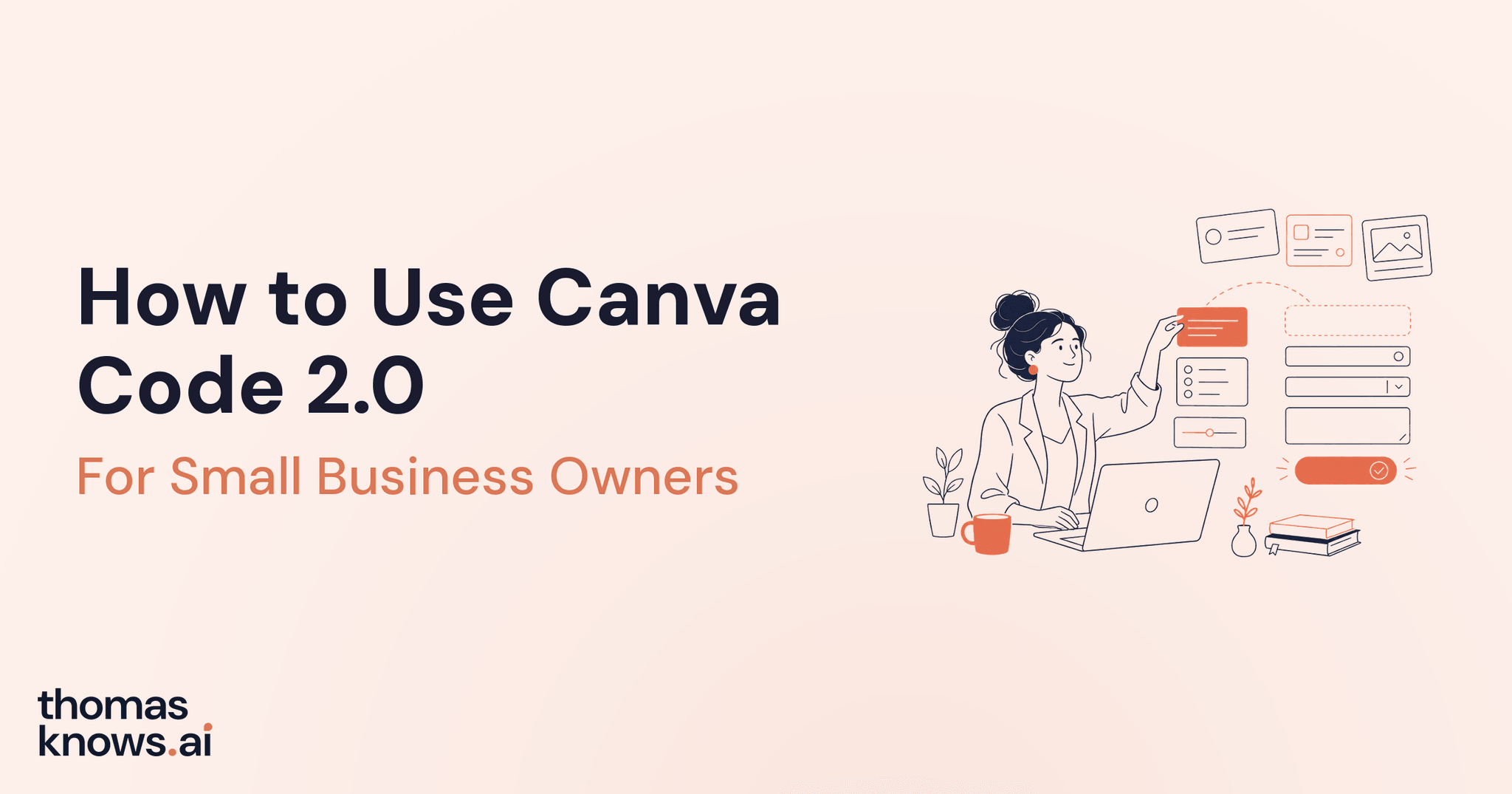
Canva Code 2.0 lets a small business owner describe an interactive tool in plain language, then edit and publish the result inside Canva. That tool might be a client-fit quiz, a project estimator, an event form, a service guide, or a simple training hub.
Canva can now create something a customer can use, keep every visible part editable, and publish it without sending the work to a separate website builder.
Canva released Code 2.0 to its full community on July 14, 2026. The feature is available across Free, Pro, Business, Enterprise, and Education plans, although Canva has not published one universal usage allowance for every plan.
Key Takeaways
- Canva Code 2.0 turns plain-language requests into interactive experiences, including quizzes, forms, calculators, websites, and small web tools.
- The result stays visually editable in Canva, so you can change the words, colors, fonts, images, and individual sections without rebuilding it.
- Forms can send responses to Canva Sheets, which makes the feature useful for intake, event planning, and simple lead collection.
- Publishing happens inside Canva through a free Canva web address, a custom domain, or private sharing for a team.
- You still need to test the business logic and every answer path because a polished screen can hide a wrong recommendation.
What Is Canva Code 2.0?
Canva Code 2.0 is Canva's AI code generator for people who do not want to write code. You tell it what you want to build, Canva creates the working experience, and you refine the result through conversation or the visual editor.
The first version could generate interactive designs from a prompt. Code 2.0 adds more ways to start, more control after the first draft, and a shorter path to publishing. Canva says generation time is 75% faster and the median time from prompt to published result is 30% faster; those are Canva's reported figures, not an independent benchmark.
You can begin with a request, choose from more than 50 templates, or bring in a saved web page file made elsewhere. The finished result can sit inside a presentation, whiteboard, or other Canva design, or it can be published as a standalone interactive page.
That is useful for a small business because the final product does more than display information. A visitor can answer questions, submit a form, move through a guided choice, or receive a recommendation while the owner keeps control of the branding.
What Changed on July 14, 2026?
Canva made Code 2.0 available to its entire community and added three changes that matter for everyday business work:
- More starting points. You can begin with a plain-language request, one of more than 50 templates, or an existing web page file.
- Visual editing after generation. Text, colors, fonts, images, and selected sections can be changed in the Canva editor instead of regenerated from scratch.
- One-place publishing. Teams can review the work together, preview it on mobile, and publish it from Canva.
Canva also says every output adjusts to different screen sizes. That does not remove the need to test on a phone, but it gives you a responsive starting point instead of a desktop-only draft.
The official walkthrough below introduces Canva Code 2.0 at the point where Canva explains the feature, its editable output, forms, and publishing options.
Video: Introducing Canva AI 2.0, starting at the Canva Code 2.0 section, from Canva's official channel
Five Useful Canva Code Ideas for a Small Business
The best first project is narrow enough to test in one sitting. A complete customer portal may sound impressive, but a single useful tool is easier to verify and more likely to get used.
1. A client-fit quiz
Ask five to seven questions about the prospect's goals, timeline, budget range, and current setup. The last screen can recommend the right service tier and point the visitor to the next step.
This saves time before a consultation because the prospect learns what fits, while you receive a cleaner starting point for the conversation.
2. A project estimator
Build a guided calculator that asks about scope, quantity, turnaround, and optional services. Use ranges rather than guaranteed quotes, then explain what can change the final price.
A service business can use this to replace a long pricing email with a short interactive estimate. The result should still be reviewed by a person before it becomes a formal quote.
3. An event or workshop intake form
Create a branded registration form that collects names, contact details, session choices, and accessibility needs into Canva Sheets. The same experience can show the schedule and answer common questions before someone submits.
Keep the information request minimal. A simple event form does not need private financial, medical, or identity data.
4. An interactive service guide
Turn a static service menu into a guided decision. Visitors choose what they need help with, answer two or three follow-up questions, and receive a short explanation of the best starting option.
This works well when customers often choose the wrong package or need the same explanation before every sales call.
5. A team checklist or training hub
Build a step-by-step onboarding page with short lessons, links, checks, and a final knowledge quiz. Team members can use it from any browser, while you update the visible content in Canva.
For work that needs deeper document creation or connected business apps, compare this visual approach with ChatGPT Work for small business. Canva Code is strongest when the finished hand-off is an interactive experience people can see and use.
How to Use Canva Code 2.0 Step by Step
Step 1: Open Canva Code
Sign in to Canva and open Canva AI from the home page. Ask it to create an interactive experience, or open Canva Code directly if the option appears on your home screen.
Canva says the feature is available across all major plan types. If it does not appear in the same place shown in the video, use Canva's home-page search because account layouts can roll out at different times.
Step 2: Start with the outcome, not the decoration
Tell Canva Code who will use the tool, what decision or task it should help with, and what the final screen should do. Leave colors and animation until the basic path works.
A strong first request sounds like this:
Create an interactive client-fit quiz for a small consulting business. Ask six questions about the visitor's goal, timeline, team size, current tools, budget range, and preferred level of support. Recommend one of three service options at the end, explain the recommendation in two sentences, and include a button to book a paid 1:1 session. Keep every answer visible for review before the final recommendation.
This request uses Canva Code's distinctive strength: it asks for a working interactive experience, not a paragraph describing one.
Step 3: Add your real business rules
The first draft will only be as accurate as the choices and recommendation rules you provide. Replace generic service names, define what sends someone to each result, and add any boundary that prevents a bad fit.
For example, tell Canva Code that a rush timeline should never recommend the lowest-support option, or that a budget answer is for guidance rather than a binding quote. Clear rules matter more than clever wording.
Step 4: Review the logic before the design
Click through every answer combination that could change the result. Write down what you expected, compare it with what the tool displayed, and correct any route that gives the wrong recommendation.
A polished quiz with faulty logic creates more work, not less. Test the uncomfortable edge cases too, including missing answers, conflicting answers, and someone choosing the highest option for every question.
Step 5: Edit the visible design in Canva
Once the logic works, change the text, colors, fonts, images, and individual sections in Canva's editor. You can also ask Canva AI to revise a selected part through conversation.
Use your brand kit if your plan includes one, but keep the page simple enough to use on a phone. Large buttons, short questions, and one clear action on the final screen will outperform a crowded design.
Step 6: Connect responses only when you need them
If the experience includes a form, confirm where each response lands in Canva Sheets. Submit several test entries, check the column labels, and verify that the information arrives in a format you can actually use.
Do not collect sensitive customer information just because the form can accept it. For private records, payments, legal documents, or health details, use a system designed for that information and follow the rules that apply to your business.
Step 7: Preview, publish, and keep the first version small
Preview the experience on desktop and mobile, then publish it to a free Canva web address, connect a custom domain, or share it privately with your team. Canva says Code outputs adjust to different screen sizes, but manual testing is still the final check.
Send the first version to two or three people who match the intended audience. Watch where they hesitate, revise that section, and only then place the tool on a public page or send it to a larger list.
A Copy-and-Paste Canva Code Prompt
Use this as a starting point inside Canva Code, then replace every bracketed section with your own details:
Create a branded interactive [quiz, estimator, intake form, or service guide] for [type of customer]. Its purpose is to help the visitor [specific decision or task]. Ask [number] short questions, one at a time, using the exact answer choices I provide below. At the end, show [result or recommendation], explain why it fits in plain language, and give one next step. Use [brand colors], [font style], and [tone]. Make the experience easy to use on a phone. Do not invent prices, policies, or service details. Before publishing, show me the full question path, the result rules, and every button destination for approval.
The approval request at the end is deliberate. It forces the important details into view before you get distracted by the design.
Where Canva Code Fits, and Where It Does Not
Canva Code fits work that should be visual, interactive, and easy to share. It is especially useful for small tools that would otherwise sit as a long explanation, a static PDF, or a repeated email.
It is not the right place for every business system. Complex customer databases, payment records, regulated information, and tools that control important operations need stronger testing and purpose-built safeguards.
You still own the recommendation rules, the wording, the privacy choices, and the final test. Canva can shorten the build; you remain responsible for what your business promises.
If your main goal is broader AI automation rather than an interactive page, start with my Claude vs ChatGPT comparison for small business. If you want a private assistant that can run scheduled work, the Hermes Agent setup guide covers a different kind of hand-off.
Frequently Asked Questions
What is Canva Code 2.0?
Canva Code 2.0 is a Canva feature that turns a plain-language request into an interactive website, form, quiz, calculator, or small web tool. The result stays editable in Canva's visual editor, where you can change the words, colors, images, and layout.
Is Canva Code 2.0 free?
Canva says Code 2.0 is available to Free, Pro, Business, Enterprise, and Education users. Usage limits can depend on the plan, so check the allowance shown in your account rather than assuming every plan includes the same volume.
Do I need to know how to code?
No. You describe the tool in plain language, and Canva Code builds it. The visual editor lets you make normal Canva-style changes without writing code yourself.
Can Canva Code collect form responses?
Yes. Canva says forms made with Canva Code can collect responses in Canva Sheets. Test the full path before publishing, and avoid collecting sensitive information unless the setup meets your privacy requirements.
Can I publish a Canva Code project on my own domain?
Yes. Canva says you can publish to a free Canva web address, purchase a custom domain inside Canva, or share the experience privately within an organization.
Is Canva Code 2.0 a full replacement for a website builder?
Not for every site. It can publish polished interactive pages and small tools, but a larger website may still need features such as advanced search, account management, payments, or deeper reporting that belong in a dedicated system.
The Bottom Line
Canva Code 2.0 gives small business owners a practical way to turn repeated explanations into tools customers and team members can use. Start with one narrow job, test the logic before the design, and publish only after every path works on a phone.
One useful explanation, estimate, or intake process no longer has to be repeated by hand. That is the outcome worth measuring.
Want help choosing the right first hand-off? Book a 1:1 session with me, and we will map the process before you build it.
Subscribe to my weekly newsletter
Every week I cut through the AI noise and show you what's actually worth implementing in your business to save time. Each issue includes a copy-paste prompt that only subscribers get.
Built for non-technical folks. Free to join.

About the Author
Thomas Echezabal helps small business owners automate their busywork with AI and get real hours back each week. He has worked with small businesses his entire career, including 200+ clients on Fiverr.